


Today we have another vector icon tutorial available for our visitors. If you want to learn how to create different colored rounded diagram icon vector illustration with Pie Graph Tool, then we have an awesome tutorial for you.
How to create diagram icon
Tutorial Details
- Used Program: Adobe Illustrator CS3
- Difficulty: Beginner
- Estimated Completion Time: 20 minutes
This will be our final image.

Step 1
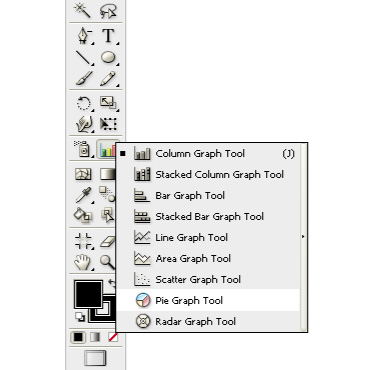
Create a new document with 370 pixels by 370 pixels. Select a Pie Graph Tool from Tools Panel.
Step 2
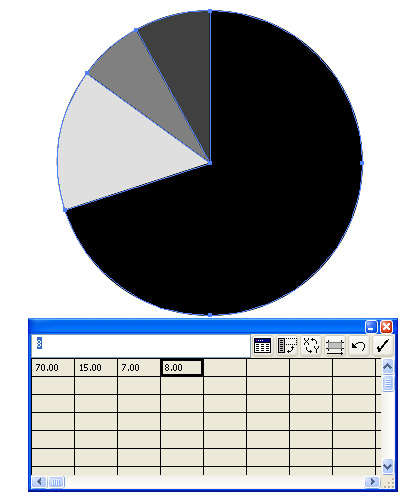
Draw a Graph 350 pixels width and 350 pixels height. Enter the information from left to right. I entered 70, 15, 7 and 8, but you may choose any amount you want. Press the check box button in the upper right corner when you finished.
Step 3
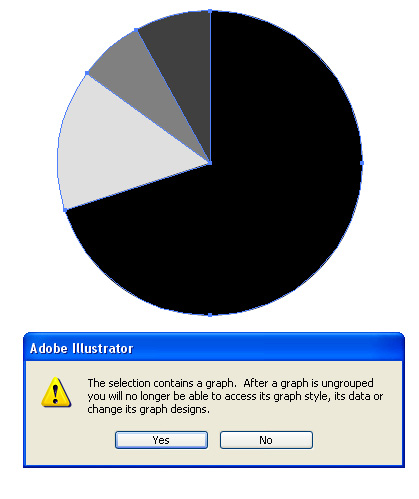
Now delete the stroke and go to Menu > Object > Ungroup (Shift+Ctrl_G) to open the Ungroup dialog. There will be a warning message, Press Yes.
Step 4
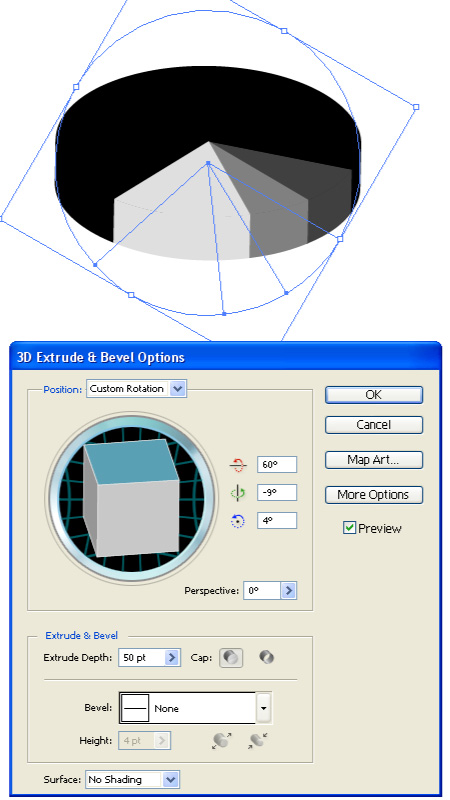
Transform the main graph shape vertical and Rotate it 60 degree. Then select the graph and go to Effect > 3D > Extrude & Bevel. Enter the values shown below to achieve the look I’ve taken. Don’t forget to change Surface to No Shading option.
Step 5
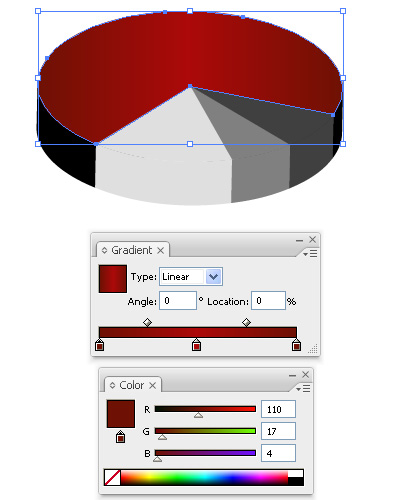
Go to Object > Expand Appearance and Ungroup two times. Now it’s time to give colors. I use Gradient to colorize all the parts of the Graph. To the biggest part of the graph I gave these colors: R-110, G-17, B-4; R-117, G-9, B-9; R-110, G-17, B-4.
Step 6
Select each part of the graph and give it a gradient fill with colors you want. Here is mine.

Step 7
Select all parts of the graph and group them. Copy and Paste in Front. With arrow buttons move it to the bottom 11 times then Send it to Back. Make Transparency Opacity 40%. You should get this result.
You can download .ai and .eps formats below. If you like my tutorial please don’t forget to share it with your friends and give your comments.
[download id=”14″ format=”3″]
Discover more from Life and Tech Shots Magazine
Subscribe to get the latest posts sent to your email.







Of course, what a fantastic website and enlightening posts, I will bookmark your website.Best Regards!
thanks, please provide me a guest blog
If you are open to having a guest blog poster please reply and let me know. I will provide you with unique content for your blog, thanks.
Really good stuff to learning for beginners,I appreciate all you hard work
Thank you for your subscription, I continue to post new tutorials.
Pretty nice post. I just stumbled upon your blog and wanted to say that I have really enjoyed browsing your blog posts. In any case I’ll be subscribing to your feed and I hope you write again soon!
Keep posting stuff like this i really like it
Thanks for sharing
This article has been shared on favSHARE.net. Go and vote it!